Getting Started on Mac
Choose the correct download
Select the installer that matches your Mac’s processor:
- Intel Chip → Download for Intel Macs
- Apple Silicon (M1, M2, M3, …) → Download for M-series Macs
If you’re unsure, click the Apple logo → About This Mac to check your chip type.
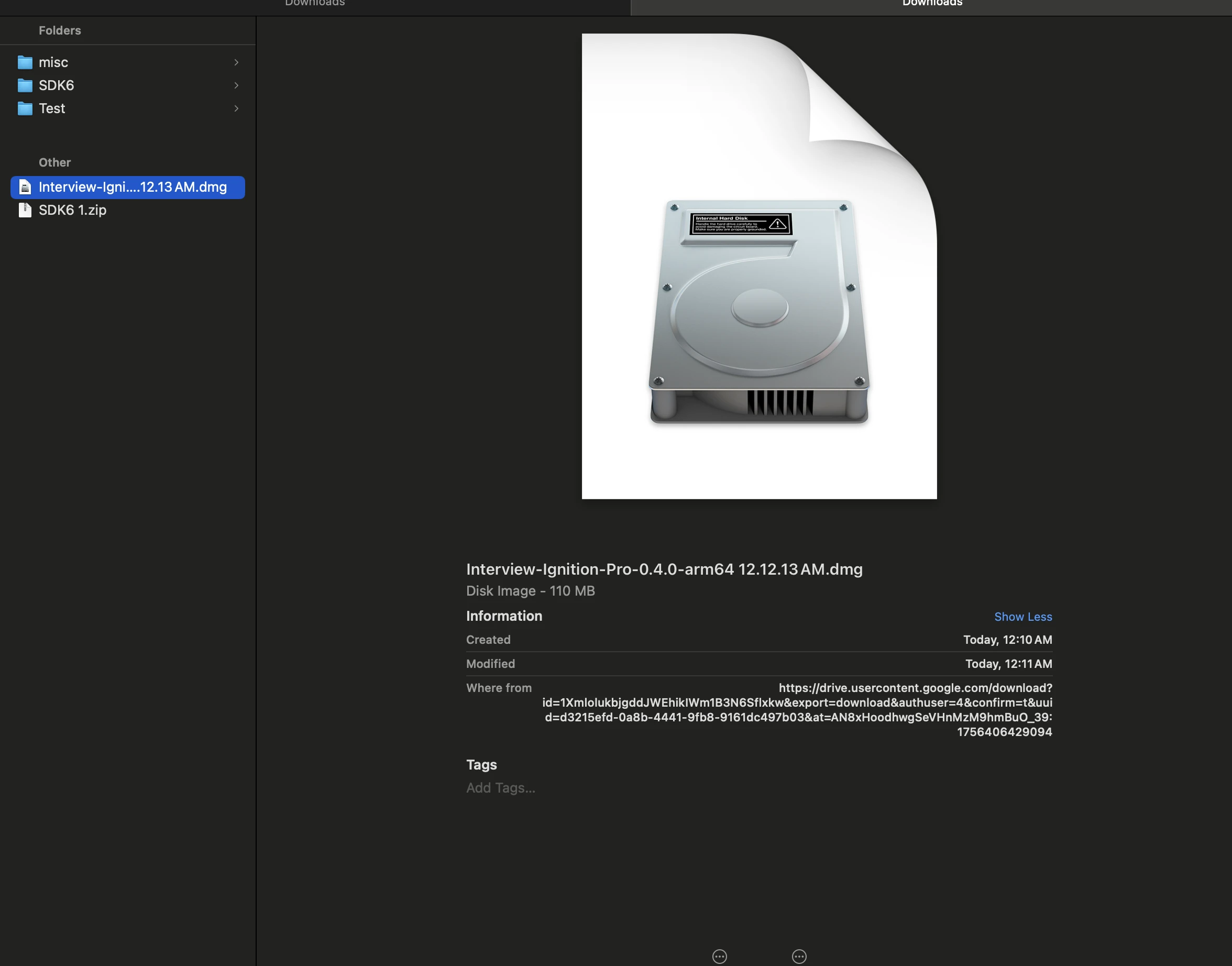
Open the installer image
Double-click the .dmg file you downloaded to open the installer.
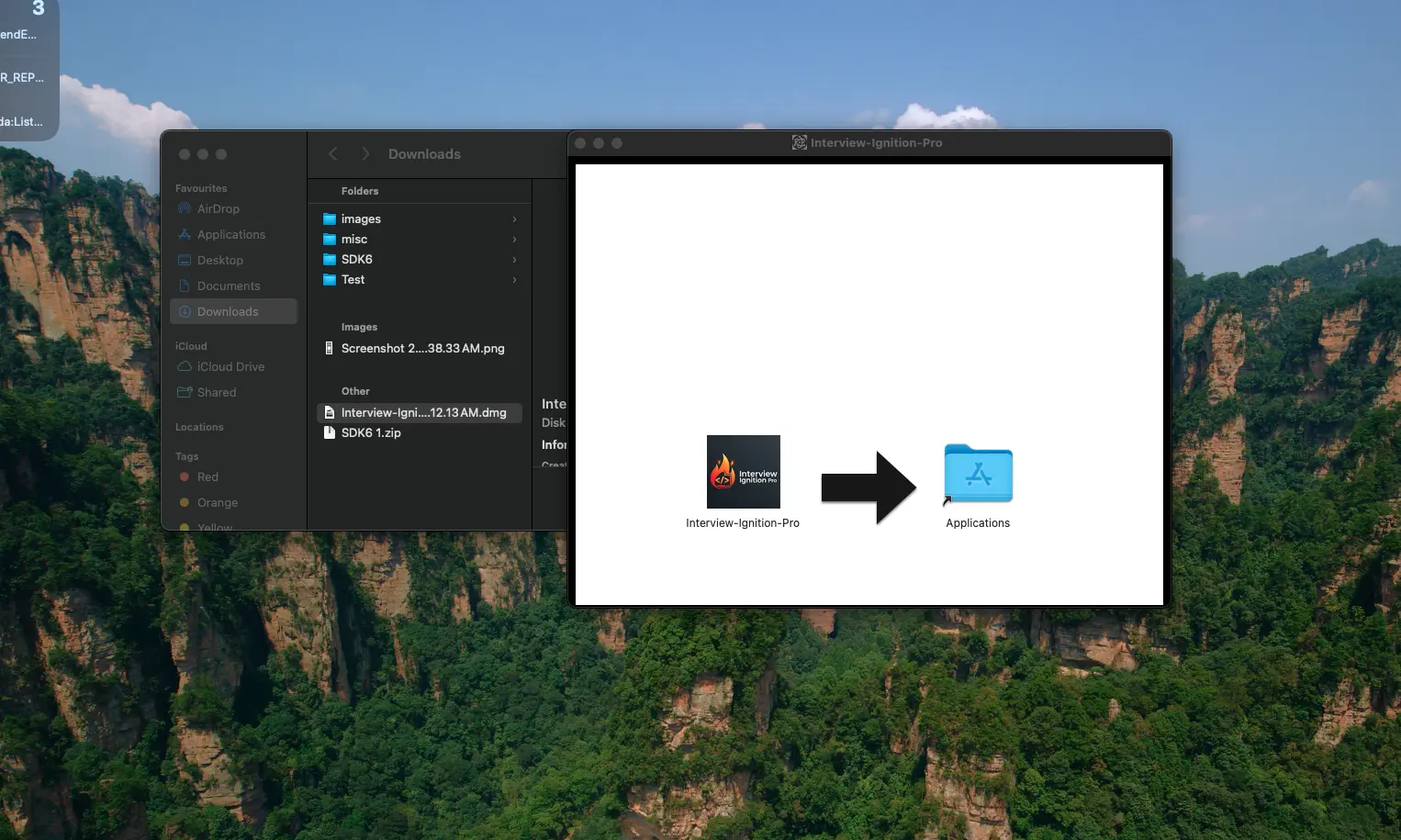
Drag into Applications
In the installer window, drag Interview Ignition AI into the Applications folder.
Open from Applications
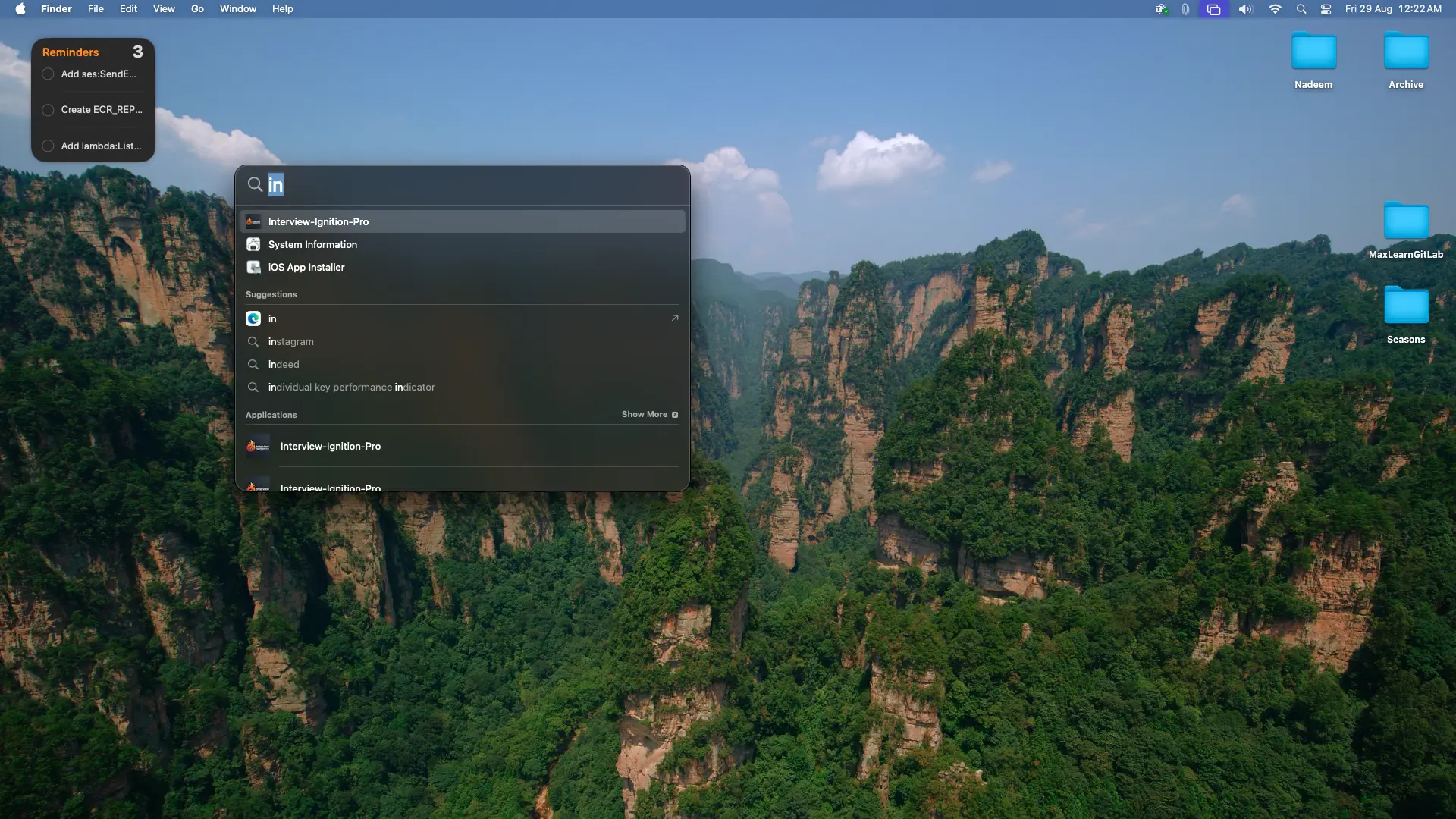
Go to Applications and double-click Interview Ignition AI to launch it.
Note: The application may be listed as audio-service in your Applications folder.
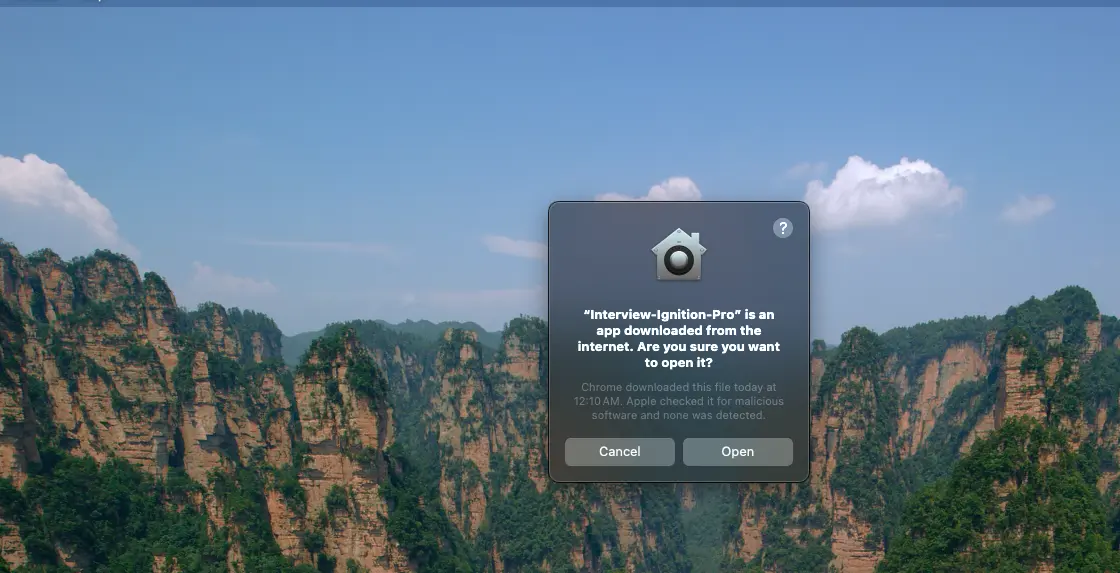
Allow first-time launch
macOS may warn: “Are you sure you want to open this app?”. Click Open to proceed.
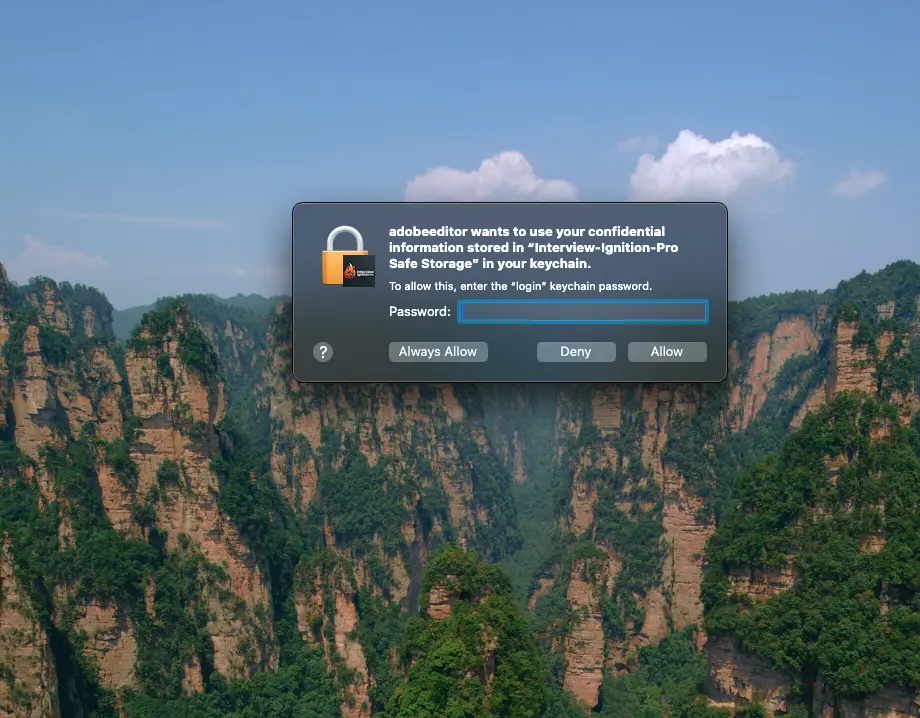
Keychain password
If asked for permission to access the keychain, enter your Mac login password and allow.
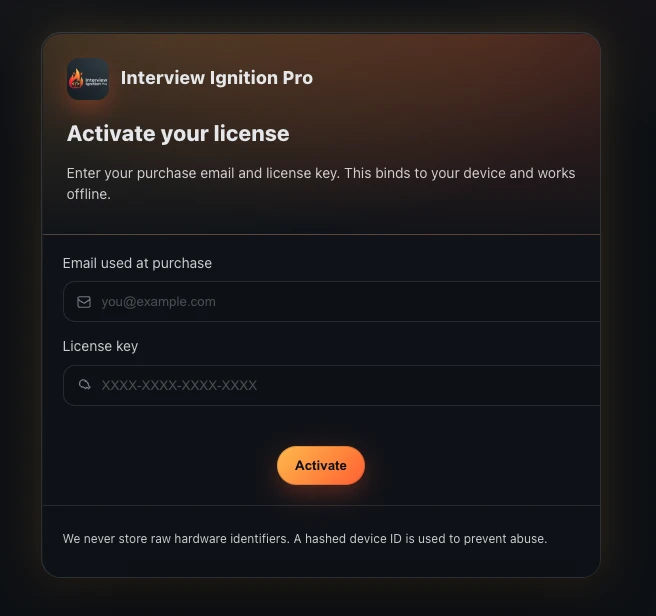
Activate your license
Enter the License Key and your Registered Email from your purchase confirmation, then click Activate.
Activation binds your license to this device and works offline afterwards.
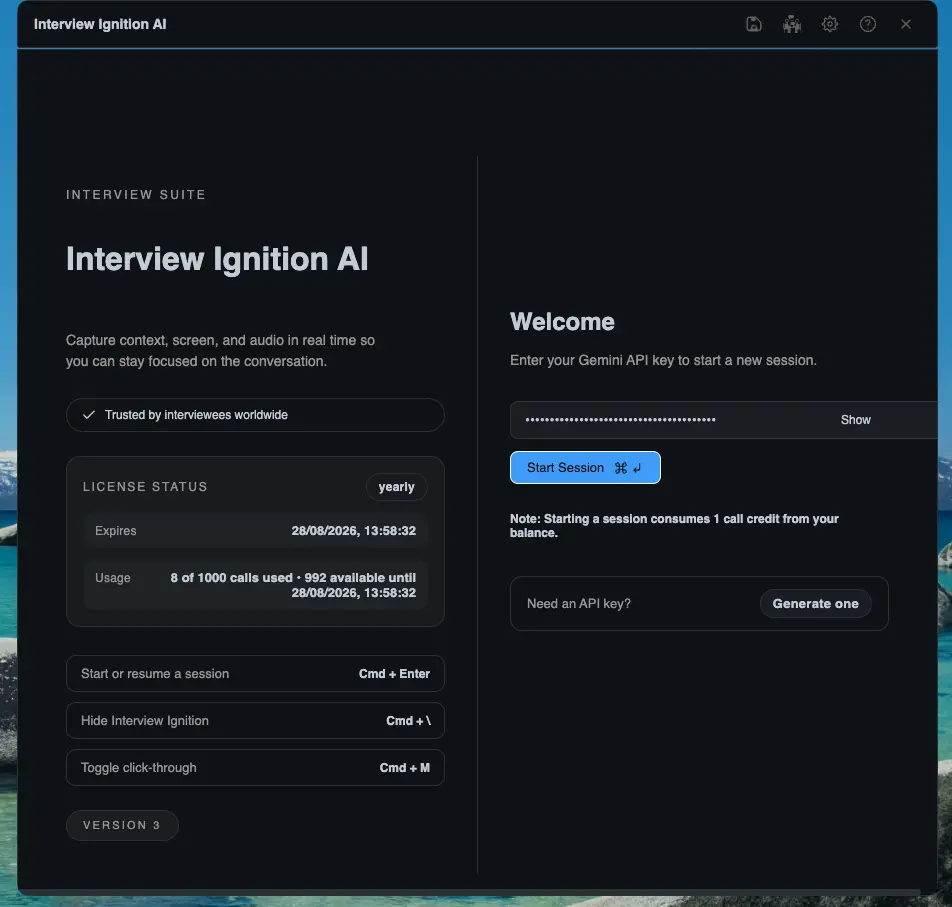
Check Permissions
The app shows any missing permissions. Click on them to grant the necessary access.
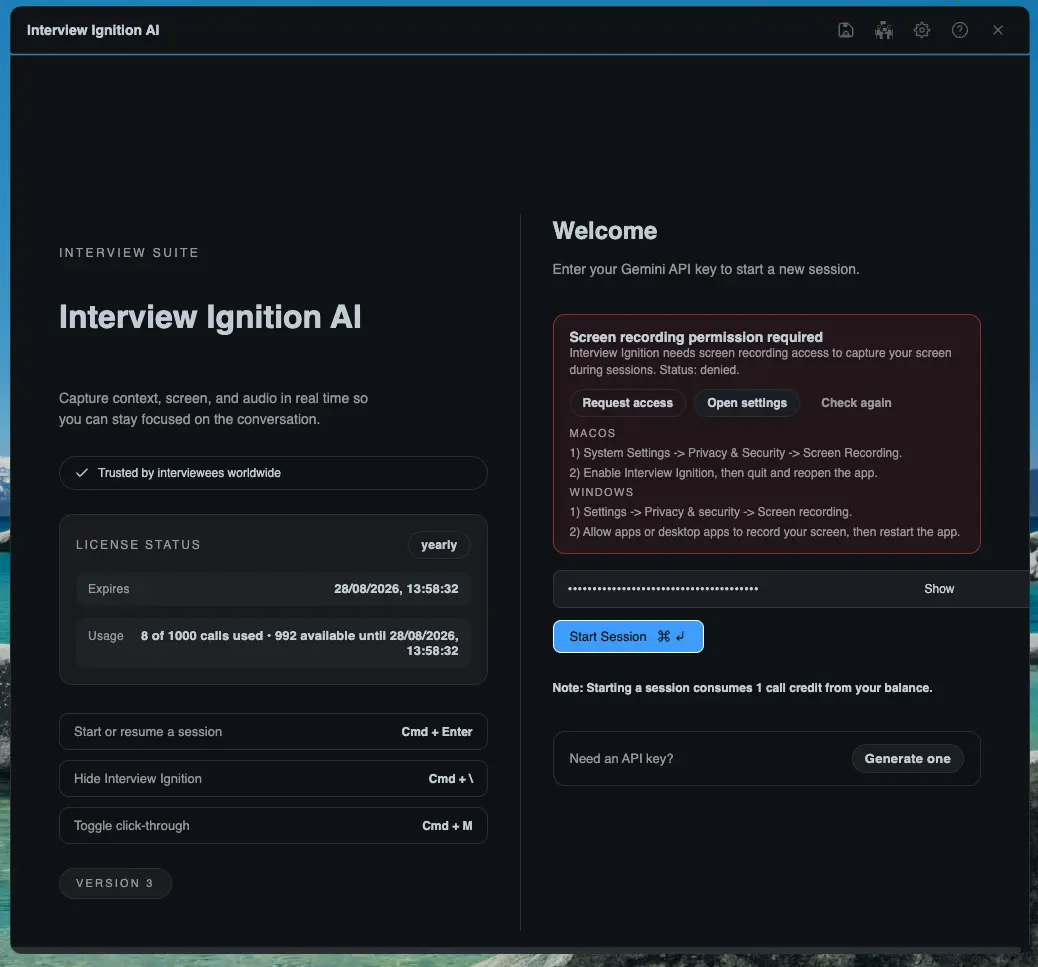
Onboarding screens
Review the onboarding slides for a quick overview of features and privacy options.
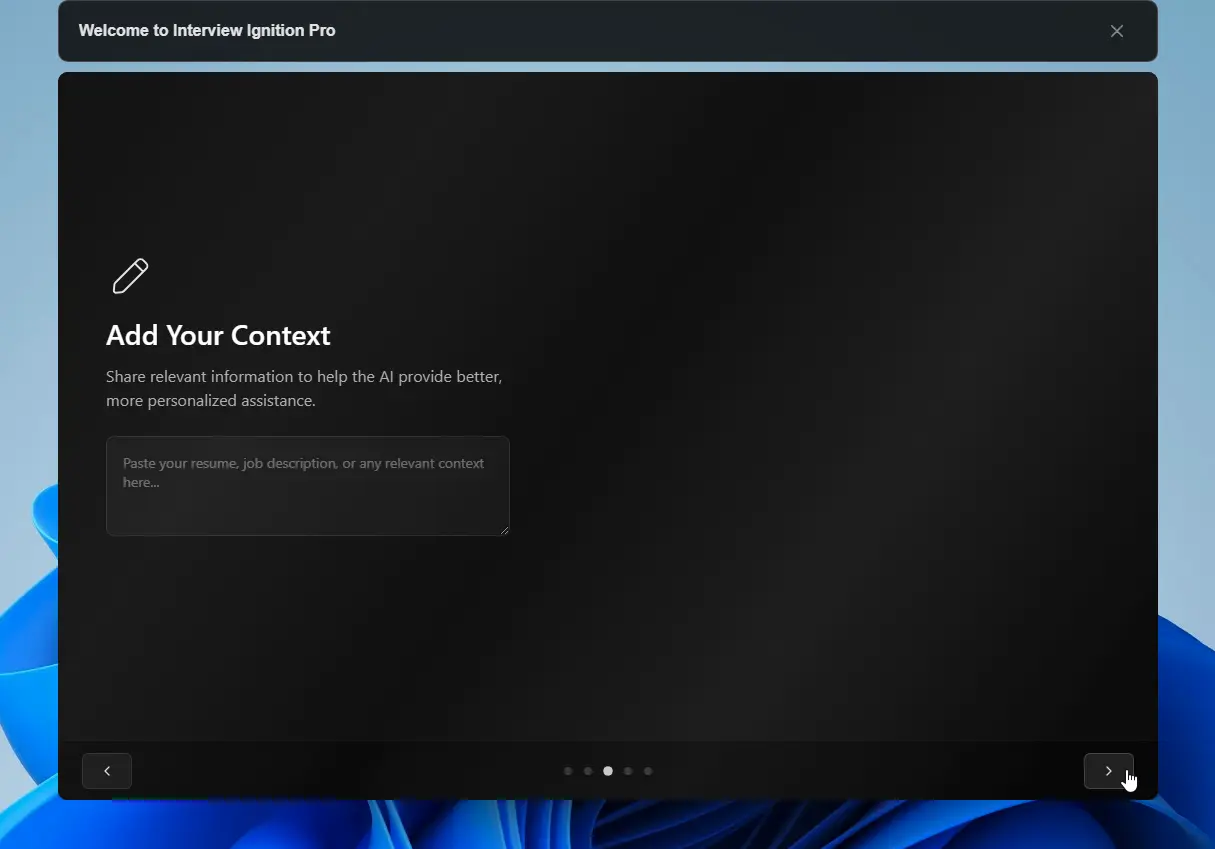
Add your context (optional)
Provide notes, resumes, or goals to personalize your AI coaching experience.
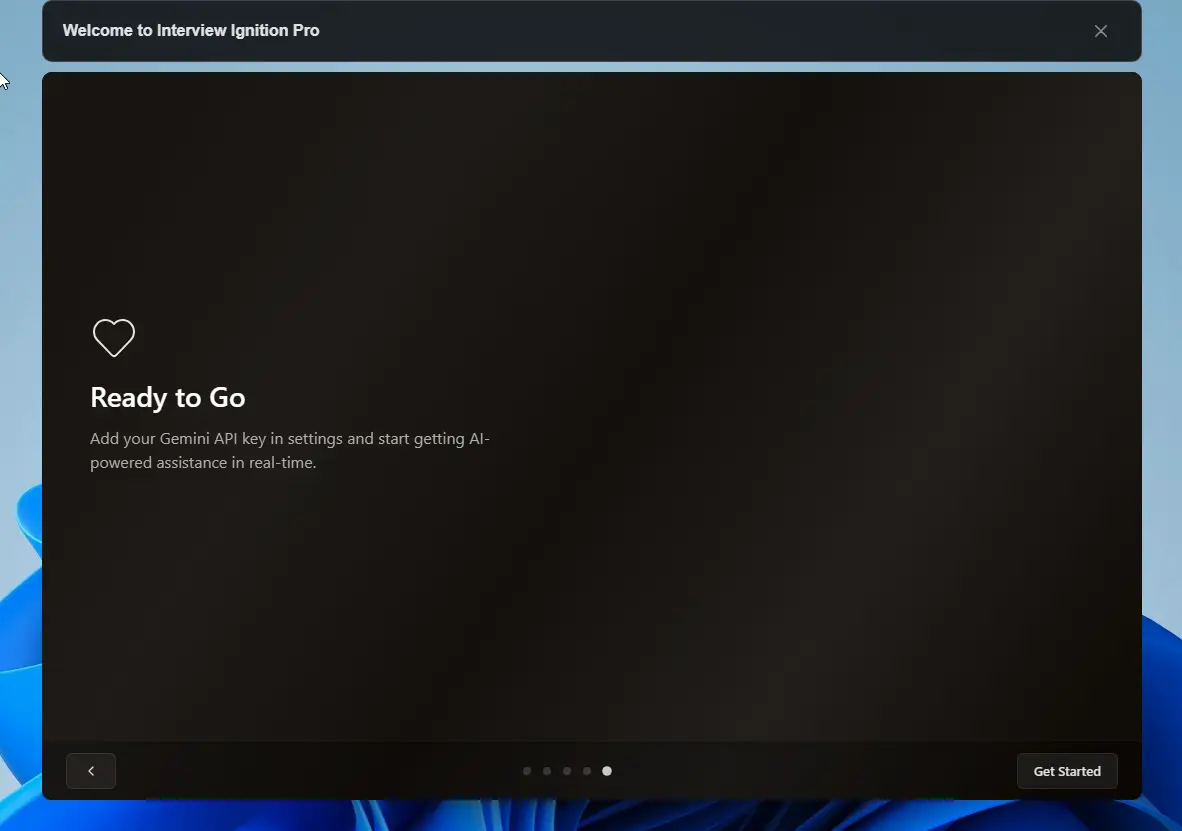
Get started
Click Next through the final slides and select Get Started.
Open Google AI Studio
Go to Google AI Studio → API keys and sign in with your Google account. Accept any terms or country prompts.
Already created a Gemini key before? You can reuse it—skip to step 13.
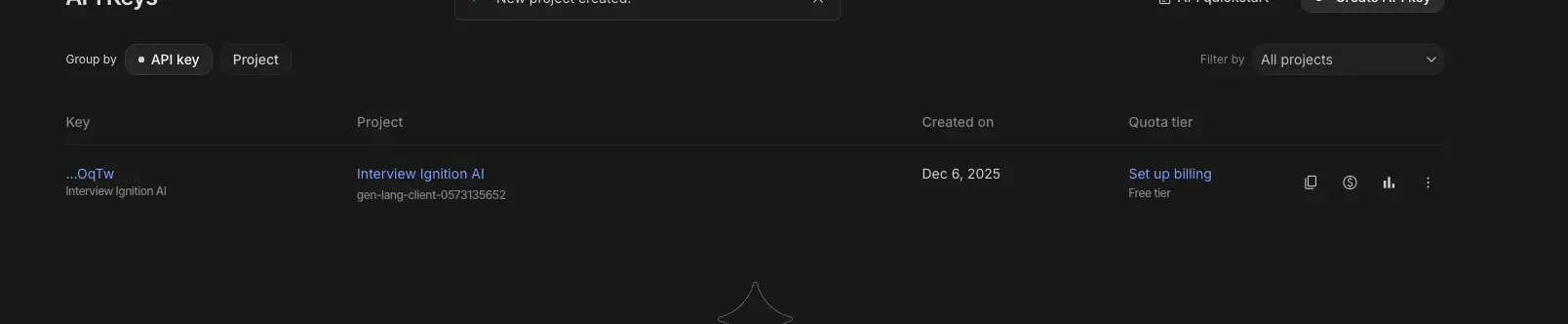
Create or import a project
- Click Create API key.
- If you see No Cloud Projects Available, choose Create project, name it “Interview Ignition AI”, and confirm. You can also pick Import project if you already have one.
- Select the project you want to use for Gemini.
You’ll manage quota and billing per project. Free tier works for most users.
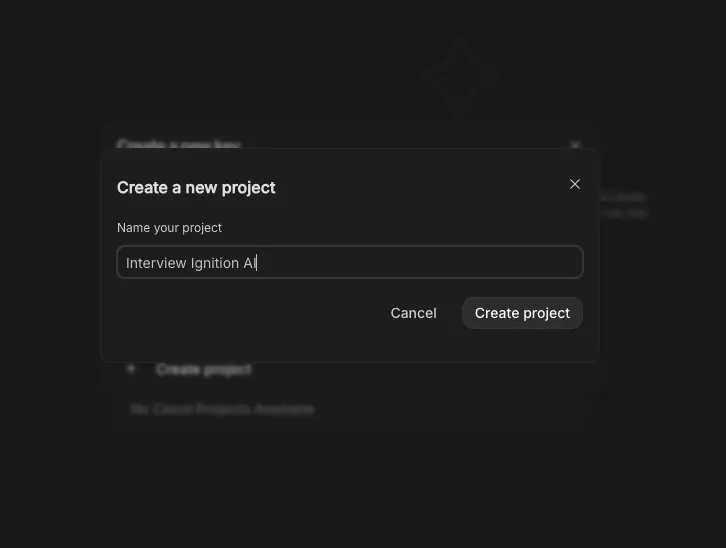
Generate the Gemini API key
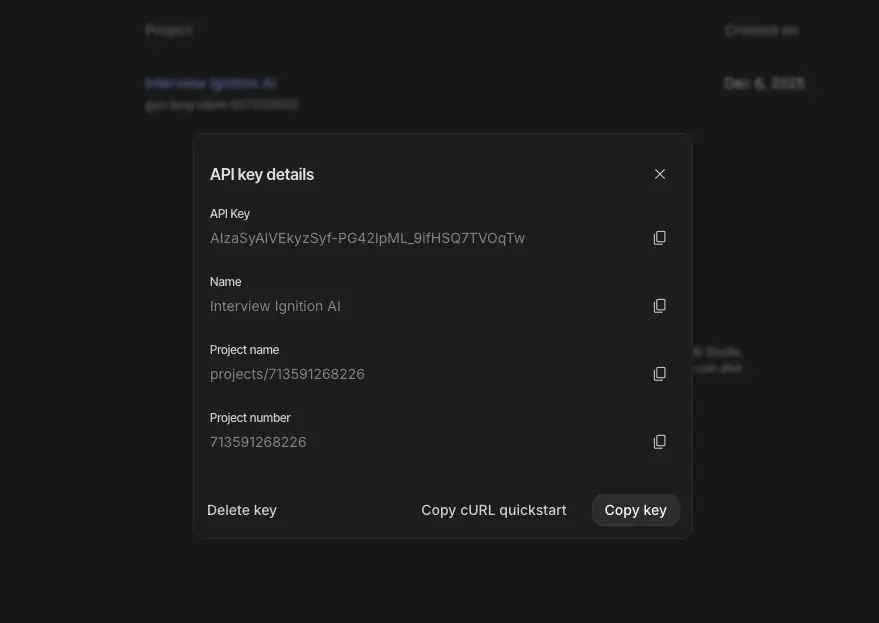
- Name the key (e.g., “Interview Ignition AI”).
- Confirm the project selection and click Create key.
- Copy the key from the confirmation dialog and keep it private—treat it like a password.
You can regenerate or delete keys anytime in Google AI Studio.
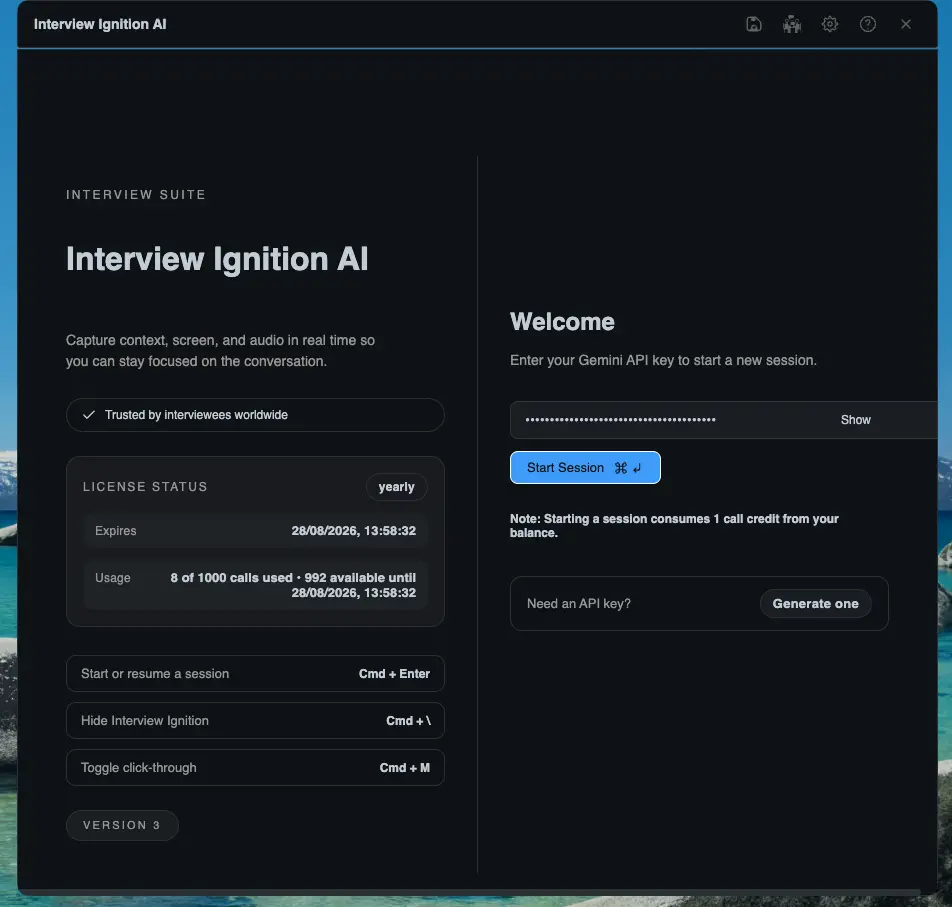
Add your Gemini API key
Open Settings → API inside Interview Ignition, paste the Gemini API key you just copied, and you’re ready to use real-time interview coaching 🚀.
If the key stops working, create a new one in Google AI Studio and replace it here.
Chat Screen
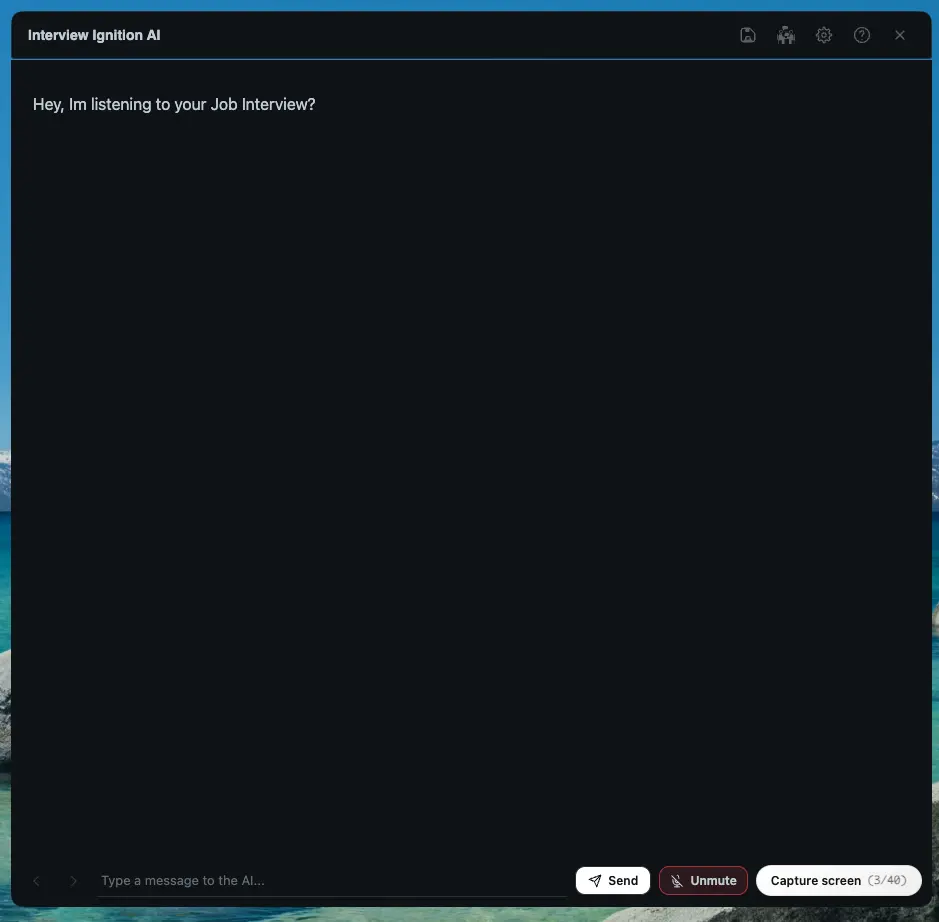
The Chat Screen is where your AI answers appear. You can also interact manually if needed.
Mute & Screen Capture
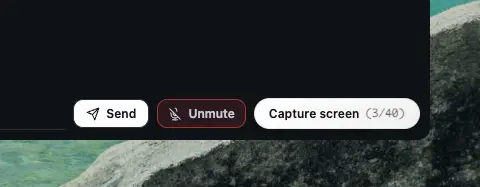
Use the Mute button to stop the app from listening to audio. This is useful when you want to pause coaching.
While muted, you can use Screen Capture to take a screenshot. The app will analyze the screenshot to provide answers, instead of listening to audio.
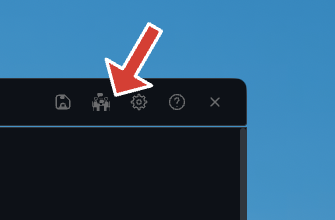
Open Mock Interview
Select Mock Interview from the main dashboard to start a new practice session.
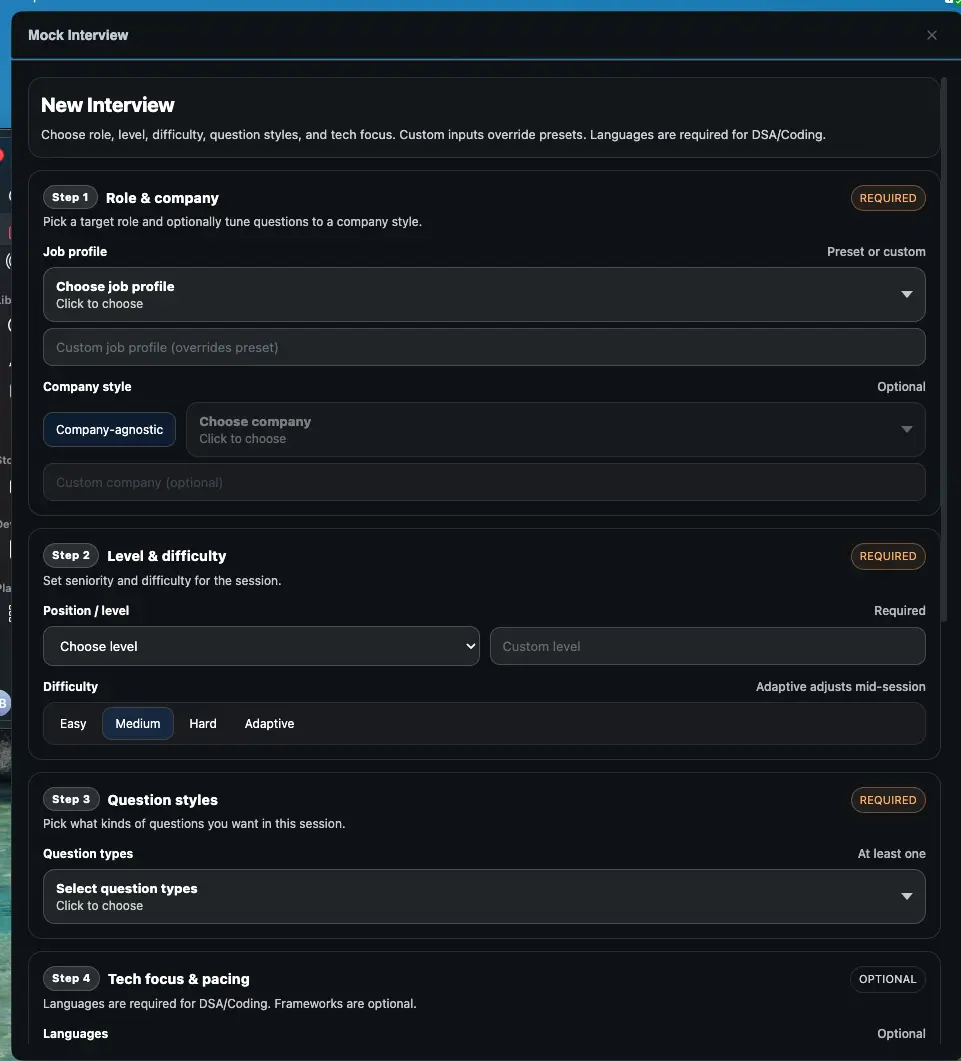
Setup Your Session
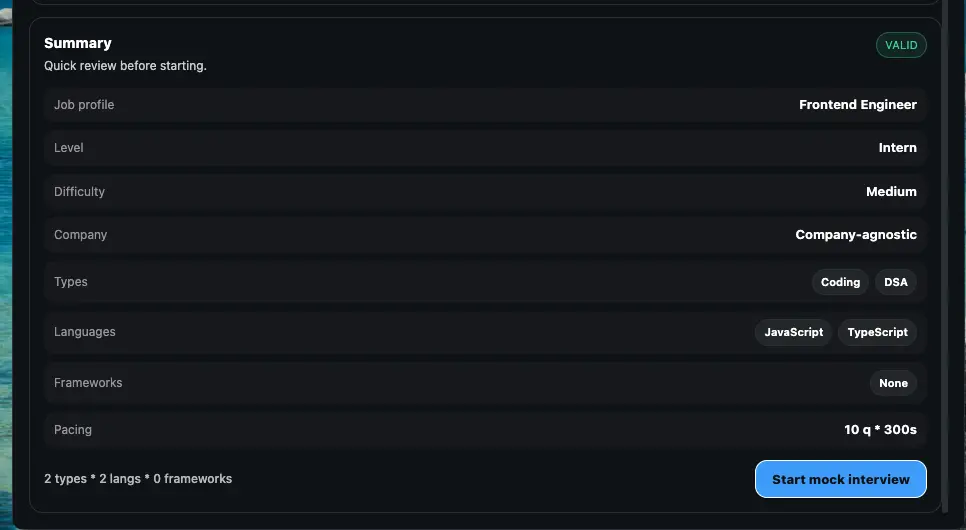
Configure your interview settings. Choose the Job Role, Experience Level, and Key Topics you want to practice.
Start the Interview
Click Start Interview. The AI will begin asking questions based on your settings.
Answer Questions
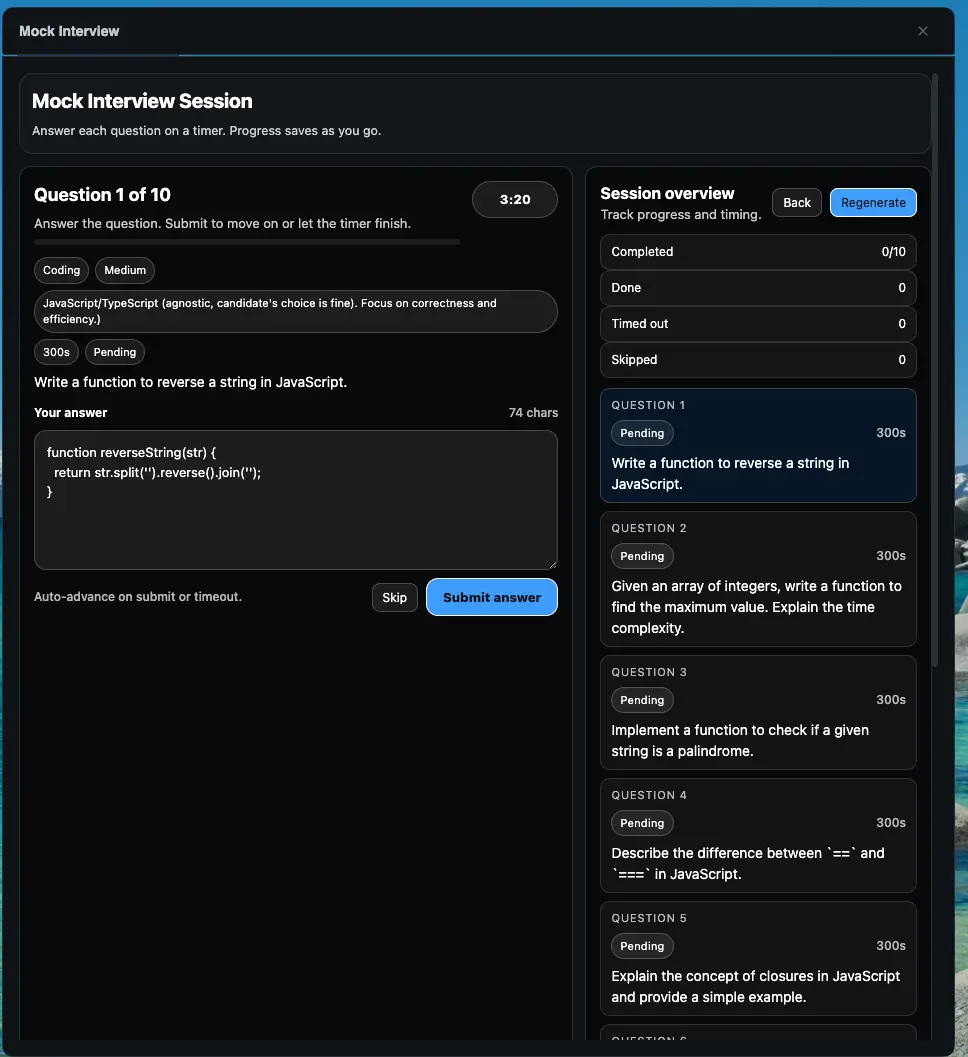
Type it out. The AI listens in real-time. Click Next when you are done with an answer.
Get Feedback
After the session, review detailed feedback on your answers, including Communication Style, Technical Accuracy, and areas for improvement.